Quit and Reopen an app on iPad
Quit and Reopen an App on iPad
If an app isn’t responding, you can quit it and then reopen it to try to resolve the issue.
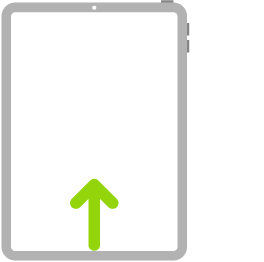
- To quit an app, open the App Switcher (swipe up from the bottom edge and pause in the center of the screen), then swipe up on the app to close it.
- To reopen the app, go to the Home Screen (or App Library), then tap the app.
If quitting and reopening the app doesn’t solve your problem, try restarting your iPad.
Related Articles
Help Center
Help Center Need assistance with your iPad? These articles will help you. How to Power On / Off / Force Restart Your iPad Wi-Fi connection Quit and Reopen an app on iPad Physical damage with the iPad Nikon Difference App Nikon FP-FIT Pro App Nikon ...Physical damage with the iPad
Physical damage with the iPad If your Nikon iPad is physically damaged, you can request a replacement by submitting a support ticket. Make sure you have the following information on hand: Account Name Phone Number Valid Email Address (for status ...How to Power On / Off / Force Restart your iPad
If your iPad isn’t working as expected, you can try restarting it by turning it off, then turning it back on. If turning it off and on doesn’t fix the issue, try forcing it to restart. Turn iPad on or off Turn on iPad: Press and hold the top button ...FAQ Fp-Fit Pro App
FAQ - FP-Fit Pro App A. GENERAL 1. How can I change the language of the FP-Fit Pro app? The language of the FP-Fit Pro interface is linked to the language set in your tablet’s settings. - Go into your tablet’s settings. - In “General”, click on ...Nikon Difference App
Choose your right kit: Kit A - All account Kit B - EyeRecommend and Opto Réseau