Wi-Fi connection
Connect your iPad to the internet
Connect your iPad to the internet by using an available Wi-Fi network.
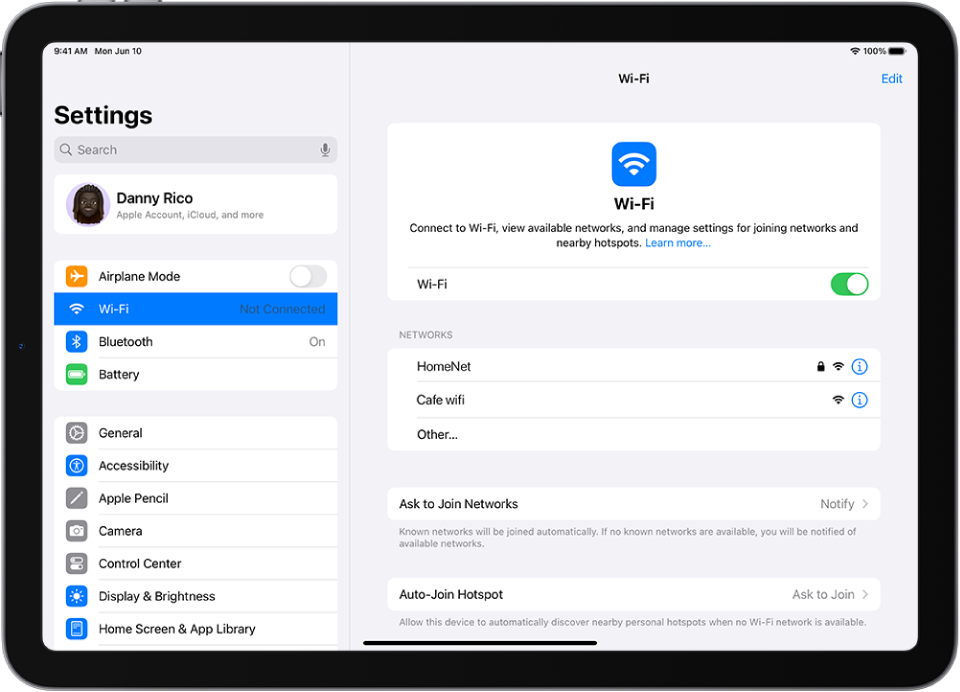
View available networks and connect to Wi-Fi
- Go to Settings
 > Wi-Fi, then turn on Wi-Fi.iPad automatically joins known networks.
 - To join a new network, do one of the following:
- Join an available network: Tap the name of the network. If asked, enter the password.
- Join a hidden network: Tap Other, then enter the name of the network, security type, and password.
When iPad is connected to Wi-Fi, a blue checkmark appears next to the network name, and  appears at the top of the screen.
appears at the top of the screen.If your Wi-Fi doesn't appear, check your router connection
Related Articles
Help Center
Help Center Need assistance with your iPad? These articles will help you. How to Power On / Off / Force Restart Your iPad Wi-Fi connection Quit and Reopen an app on iPad Physical damage with the iPad Nikon Difference App Nikon FP-FIT Pro App Nikon ...Welcome to Nikon Apps
Welcome to the Nikon Apps Managed Services Family Version française Dear Customer, Welcome! We are thrilled to have you join the Nikon Application Managed Services family. Congratulations on acquiring your brand-new iPad—it’s not just a device but ...